
Your school register, on every phone and every desk.
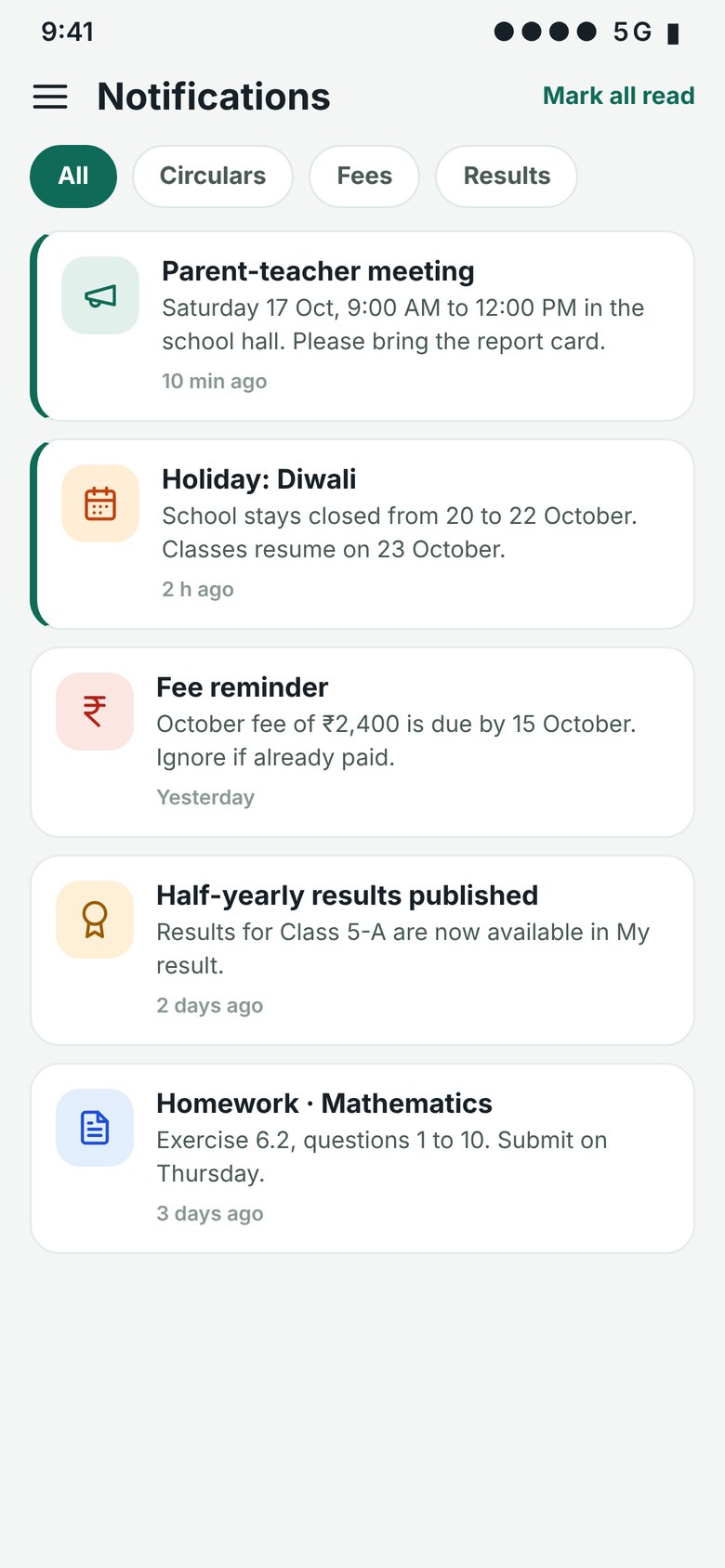
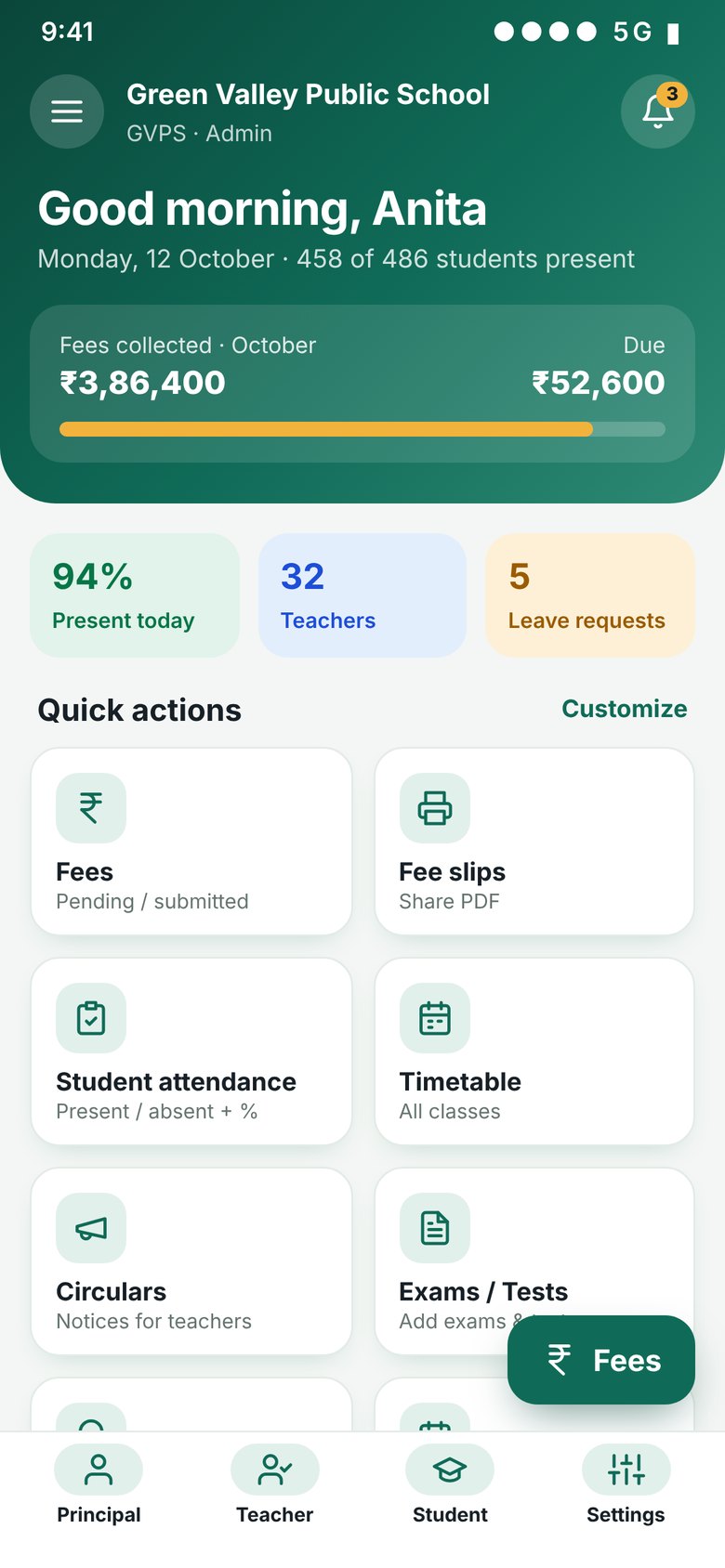
Fees and fee slips, attendance, exams and report cards, timetable, homework, circulars and holidays, all in one place. The office works on the web or Windows app, and teachers, students and parents use the Android app. Everyone sees the same data.
- 1Aarav SharmaP
- 2Mohd. ImranP
- 3Priya VermaA
- 4Rohan GuptaP
- 5Sana AliL
Everyone gets the screens they need
Each person signs in with their own login and sees only their part of the school.
Everything the app does
18 features in six parts. Your plan decides which ones your school gets, and switched-off features don't clutter the screens.
Fees, without the fee register
- Fees (collection)
- Set fees by class, take payments at the counter, and see paid and due for every student and month.
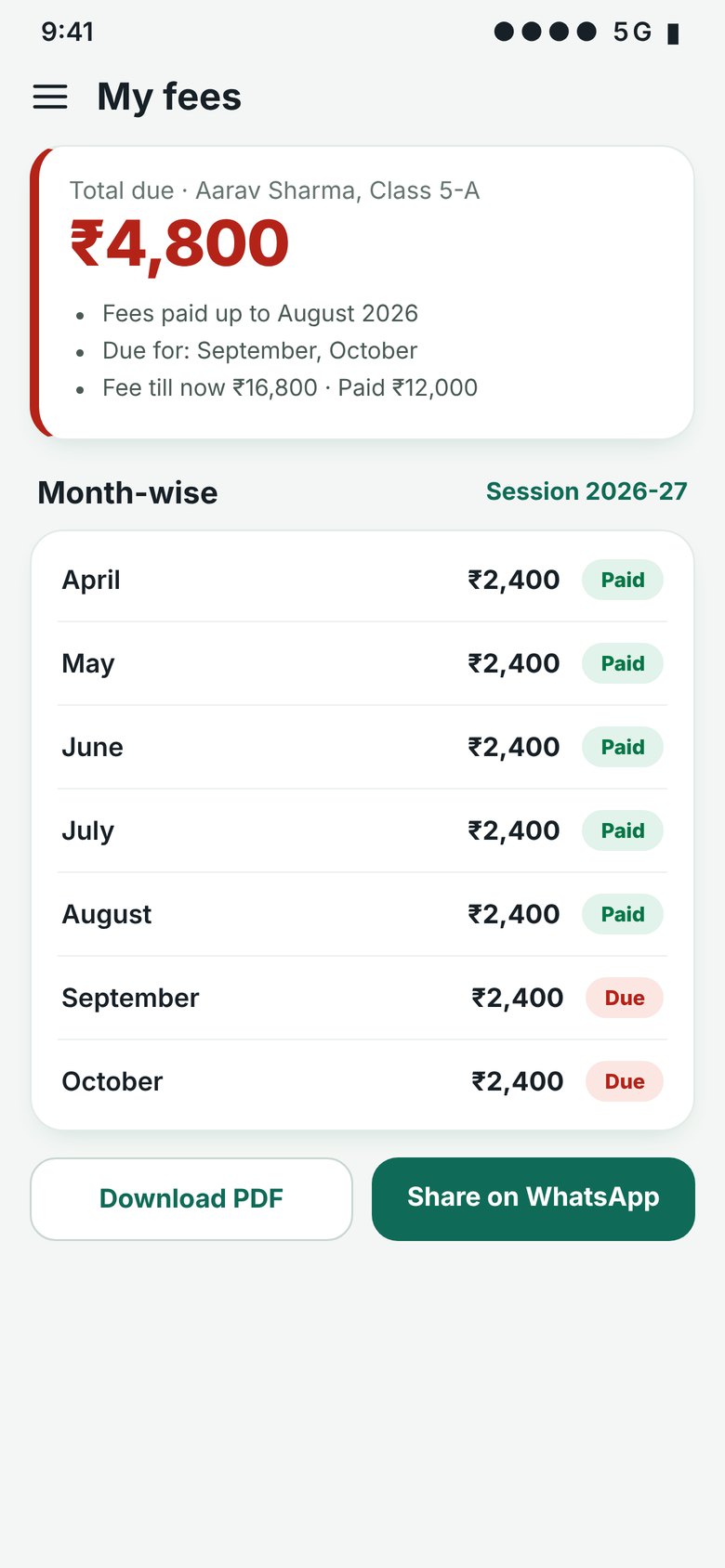
- Fee slips / My fees
- Fee slips as PDF, printed or sent on WhatsApp. Students and parents see "paid up to" and "due for" in their app.
Attendance in a few taps
- Student attendance
- Class teachers mark the whole class, subject teachers mark their periods. Present, absent, leave, half day and late.
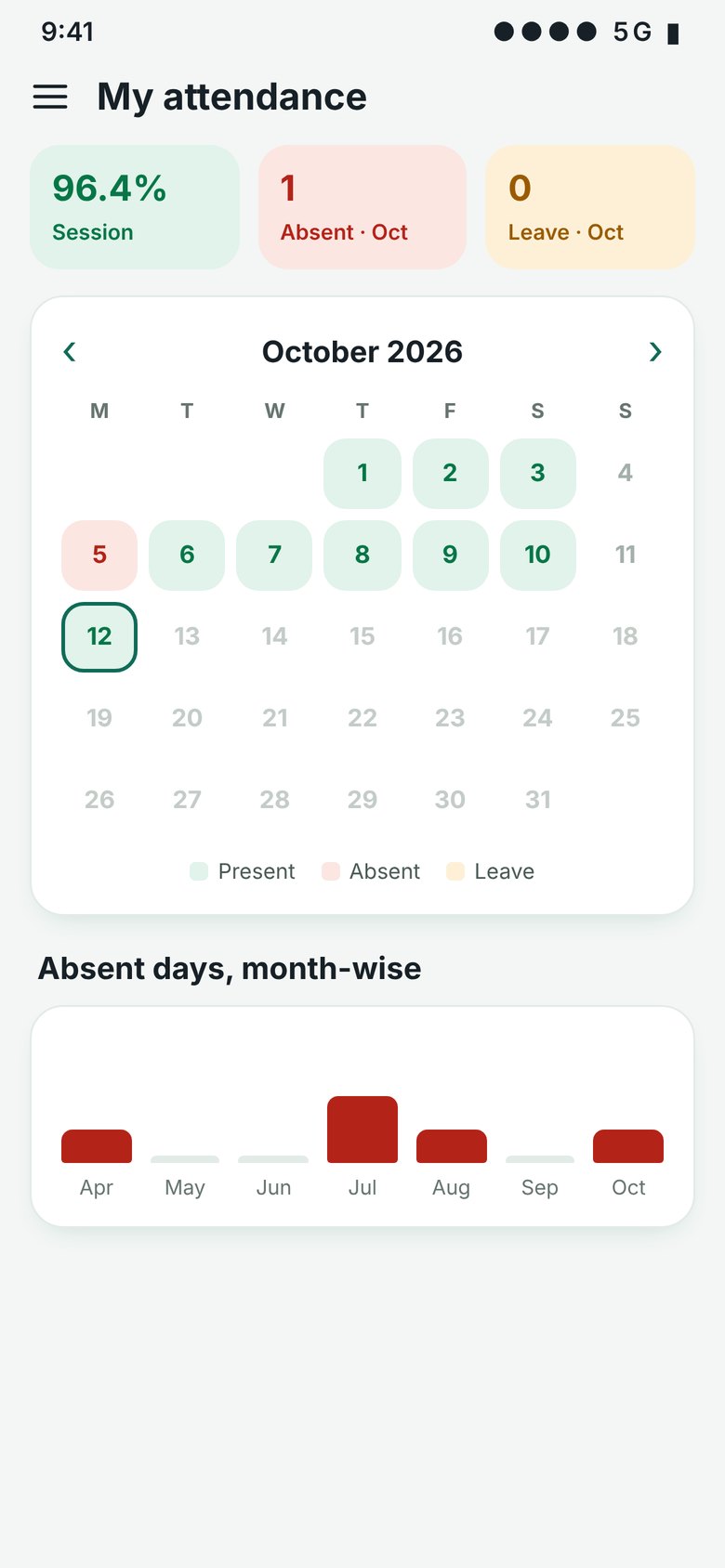
- My attendance (students)
- A colour-coded calendar for every student, with holidays marked and month-wise absent days.
- Teacher attendance
- Teachers mark their own attendance or apply for leave; the office approves. Monthly registers export to Excel and CSV.
Exams, marks and report cards
- Exams / tests
- Create exams and class tests for any class and subject.
- Fill marks
- Teachers fill marks subject by subject from their phone or the web.
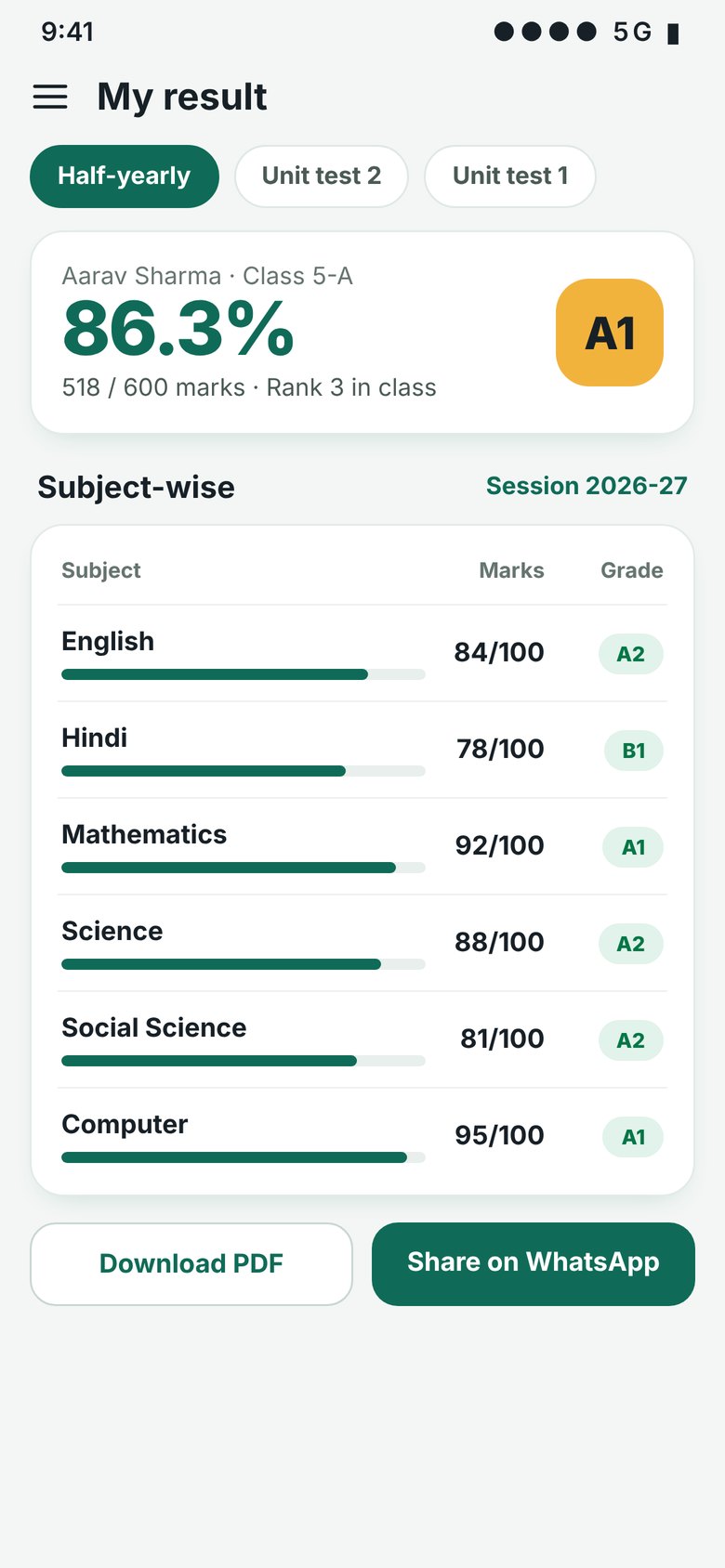
- Report cards / results
- Grades and percentages worked out for you. Report cards as PDF, shared on WhatsApp; students see results in the app.
The classroom plan, in everyone's pocket
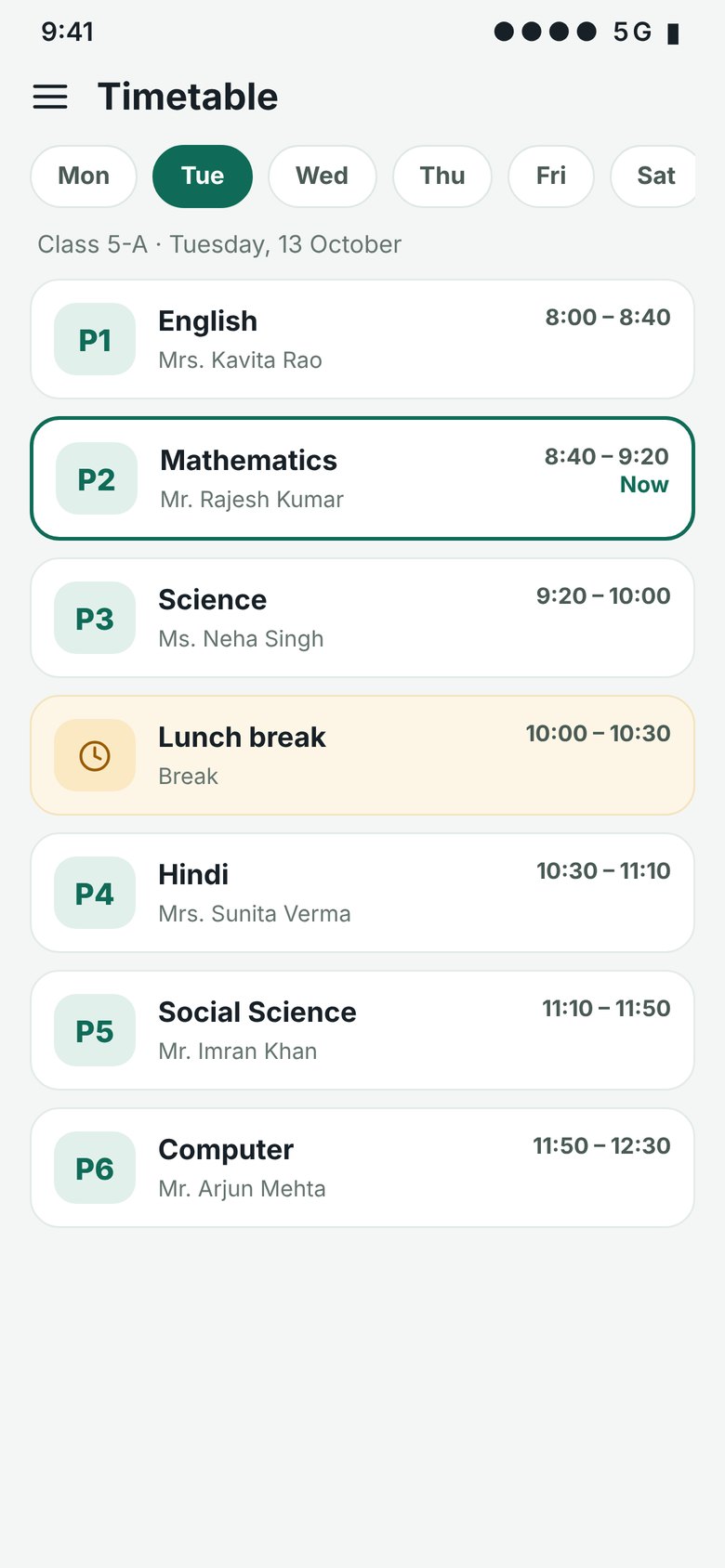
- Timetable
- Period-wise timetable for every class, and each teacher's own periods.
- Syllabus
- Syllabus for each class and subject, with photos.
- Homework
- Daily homework that students and parents can check at home.
- Assignments
- Assignments with due dates for each class.
Notices that actually reach parents
- Circulars
- Notices for staff, students and parents, delivered as push notifications.
- Academic calendar
- Exam dates, events and important days highlighted for the session.
- Holidays
- The holiday list, also shown in attendance and on every student's calendar.
- Activities & events
- Activities and events for the whole school.
Requests with a record, not on paper
- Student leave
- Students apply for leave in the app; the office approves or rejects, and the student gets a notification.
- Complaints
- Complaints and replies, kept in one place.
The home screen's quick actions can be arranged by each school, and only show what the school's plan includes.
Included in every plan
- Dashboard
- Classes and sections
- Students
- Teachers
- Subjects
- Logins for every role
- Push notifications
- Excel and CSV registers
- PDFs to print or share on WhatsApp
- School logo and session
- Forgot password by email
- Android, web and Windows
Web and Windows app, for the office
The full school on a big screen: open it in any browser, or install the Windows app on the office computer. Same login as the phone.
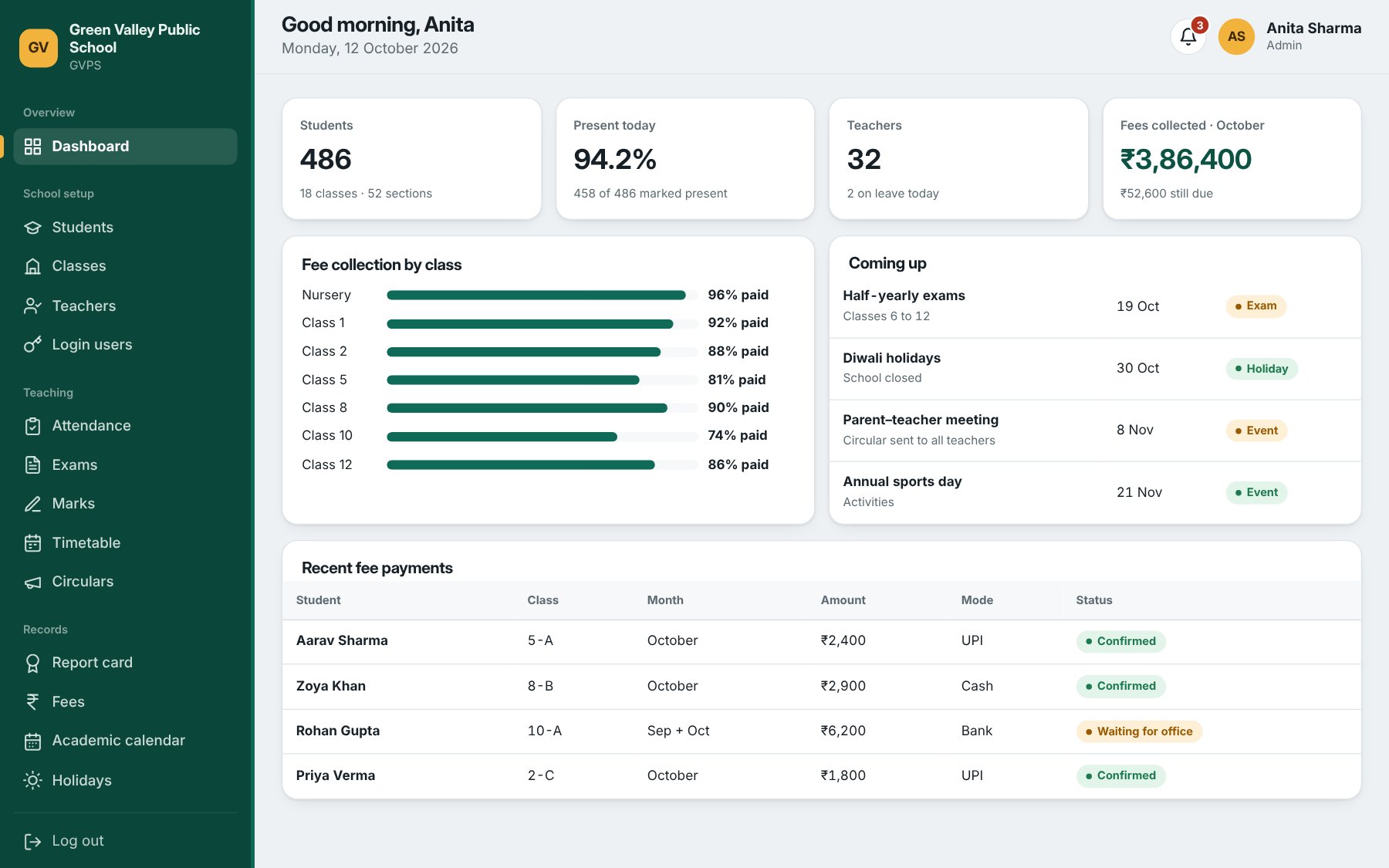
Dashboard: students, teachers, today's attendance, fees this month and what's coming up.
Registers in Excel, the way the office already keeps them
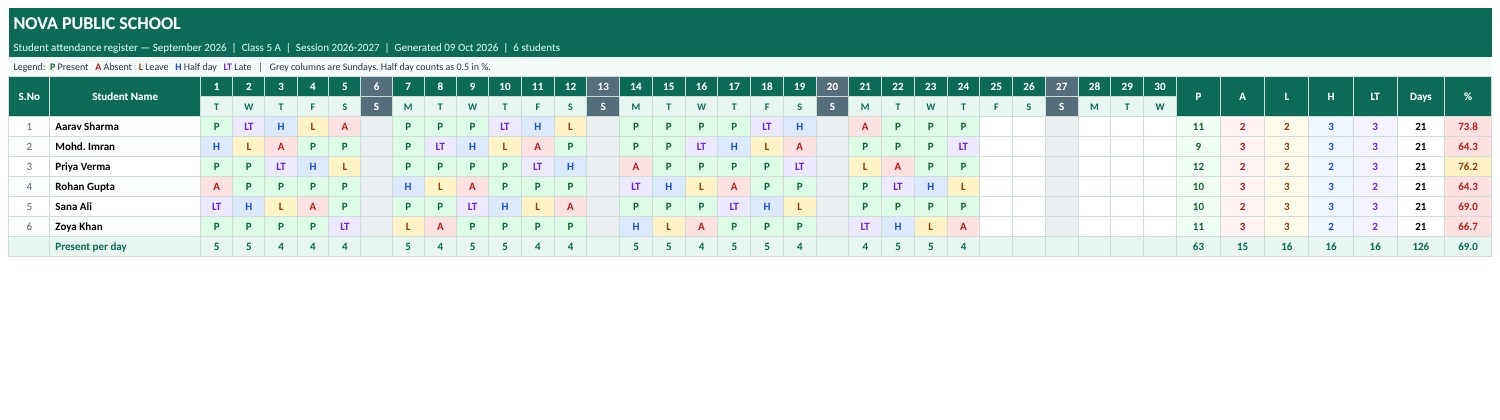
Download the monthly attendance register as an Excel or CSV file: one row per student, one column per day, Sundays and holidays shaded, totals and percentage at the end.
Start today, without a setup call
-
Choose a plan
Pick the plan that fits your school's size and the features you need.
-
Pay online
Pay with UPI, card or net banking through Razorpay. Enter your school name, the username you want, email and mobile.
-
Sign in straight away
Your school is created as soon as the payment goes through. The school code, username and password appear on screen and are emailed to you.
Plans and pricing
These are the plans on offer today, straight from our system. Renew from inside the app when your plan is about to end; you get reminders 7, 3 and 1 days before.
Plans couldn't be loaded right now. Open the plans page or contact us.
Compare plans, feature by feature
Get Nova on your devices
All three use the same school login.
-
Android appFor admin, teachers, students and parentsDownload for Android
-
Windows appFor the school office computerDownload for Windows
-
Web appNothing to install, works in any browserOpen the web app
Questions schools ask
Do teachers and parents need to install anything?
Teachers, students and parents install the Android app and sign in with the login the school gives them. Anyone can also use the web app in a browser.
How do we get our login after paying?
Right after a successful payment your school is created automatically. The school code, admin username and password are shown on the payment screen and emailed to the address you entered.
What is the difference between the plans?
Plans differ in which features are switched on and how many students, teachers, principals and vice principals you can add. The comparison table above shows exactly what each plan includes.
Can we upgrade to a bigger plan later?
Yes. Choose Renew / Upgrade on the Subscription page and pick the new plan. Your data stays as it is.
What happens when our plan ends?
The admin gets reminders 7, 3 and 1 days before and on the last day. Renew from the Subscription page; the new period starts after the current one ends, so no days are lost.
Someone forgot their password. What now?
Tap "Forgot password?" on the sign-in screen to get a 6-digit code by email. If no email is saved for that login, the school admin can set a new password from the Logins page.
Is our data safe?
Every school's data is kept separate, each person signs in with their own password, and passwords are stored encrypted. Each role sees only what it is allowed to see.
Is there a free trial?
Contact us and we will set up a trial for your school so you can try it with your own staff before you pay.